

Deck Your Devices
Hey hey hey – Christmas is less than a month away!
Have you pulled out your holiday decorations and started making things merry? Let us help!

<< Ring Ring >> Hello? Is that the holidays calling?

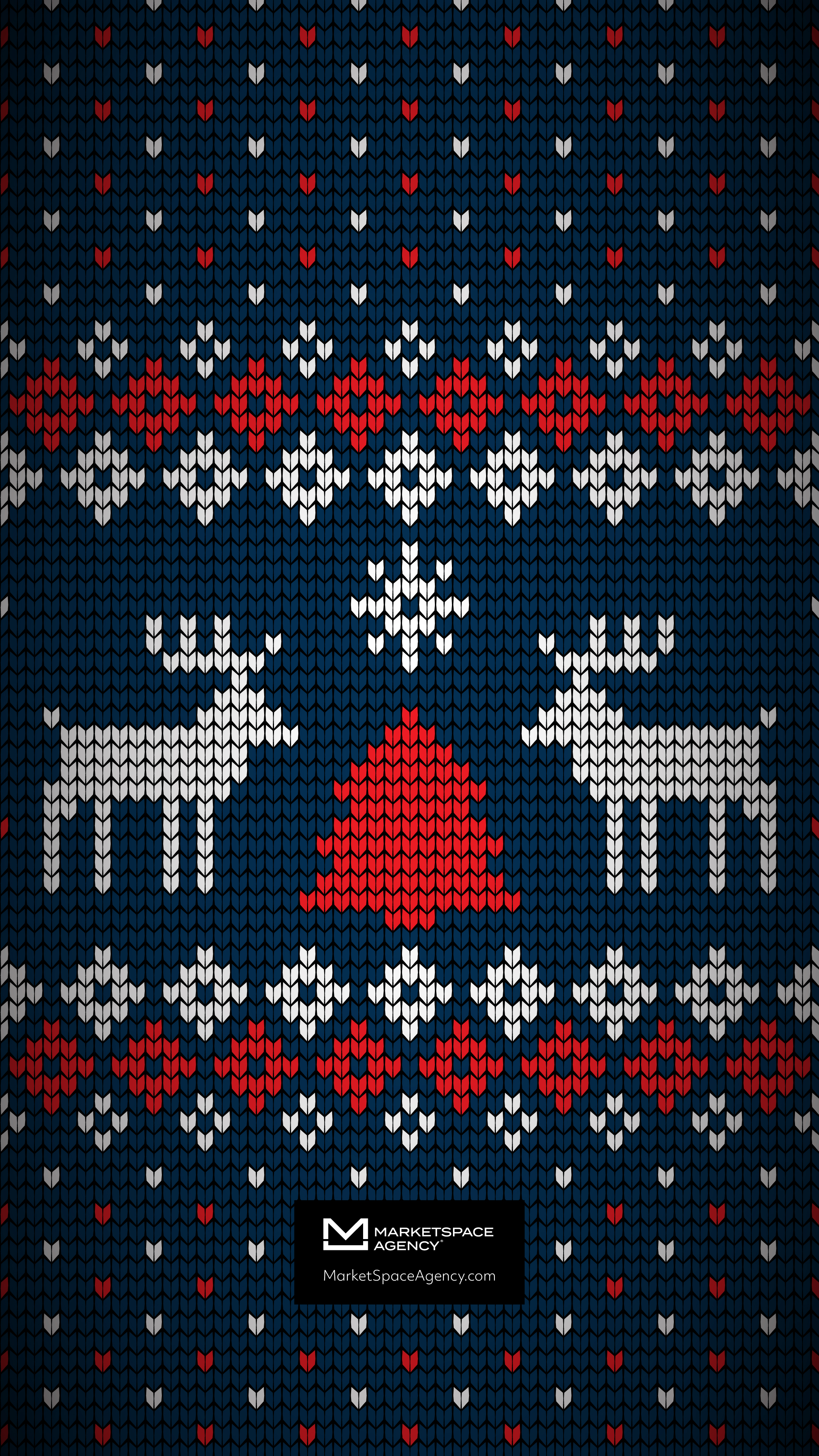


Instructions to Deck Your Device – Mobile Edition
Open this page on your mobile device, press and hold your finger to the wallpaper you like, and select “save to camera roll.” From there, the rest is a breeze…err, a blizzard. Just go into settings, select Wallpaper and hit the + to Add New Wallpaper. You can select this device dazzler from your photos!
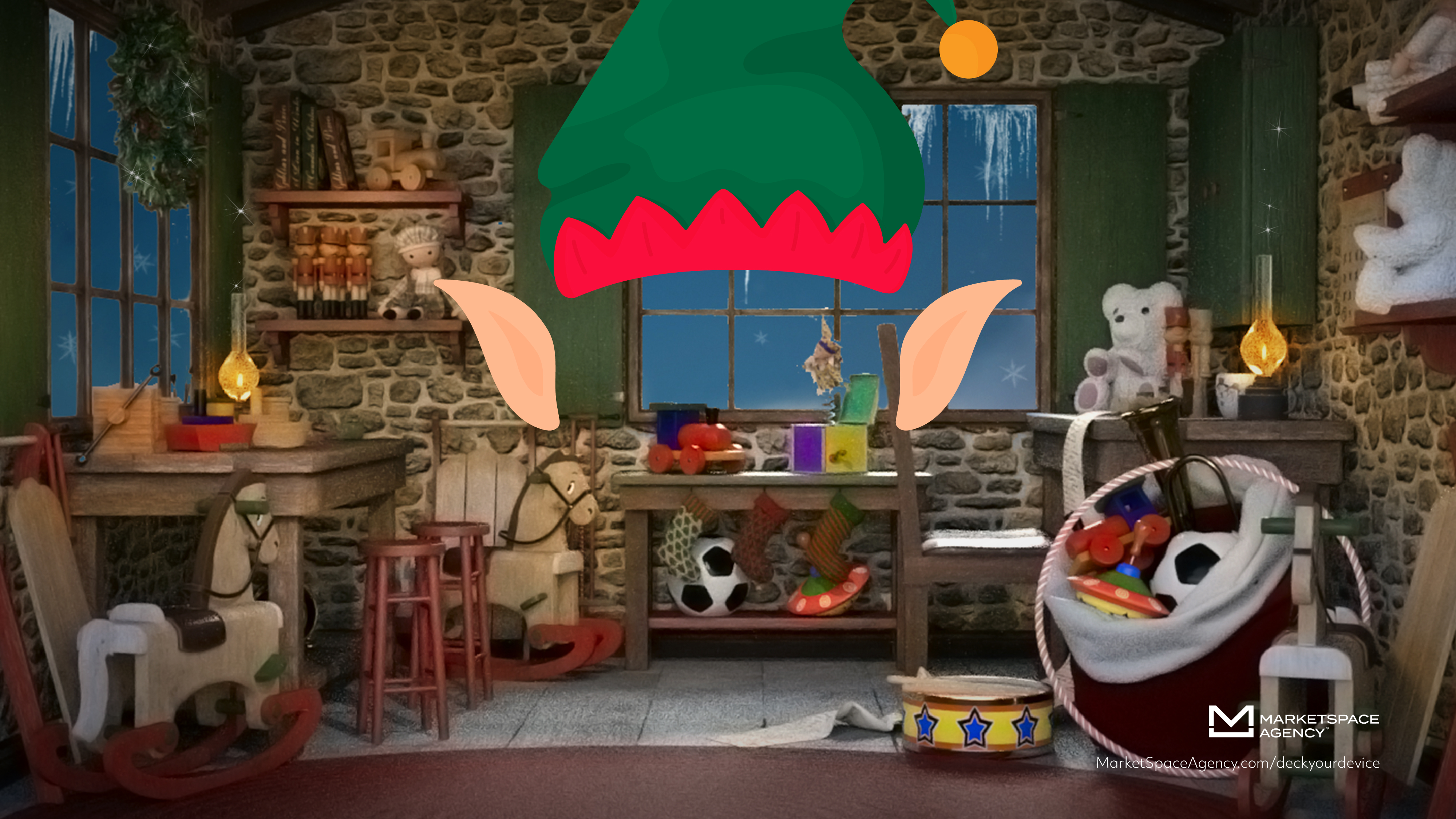
Join your next meeting from a Winter Wonderland!
Desktop Images:
Good for Teams or Zoom!


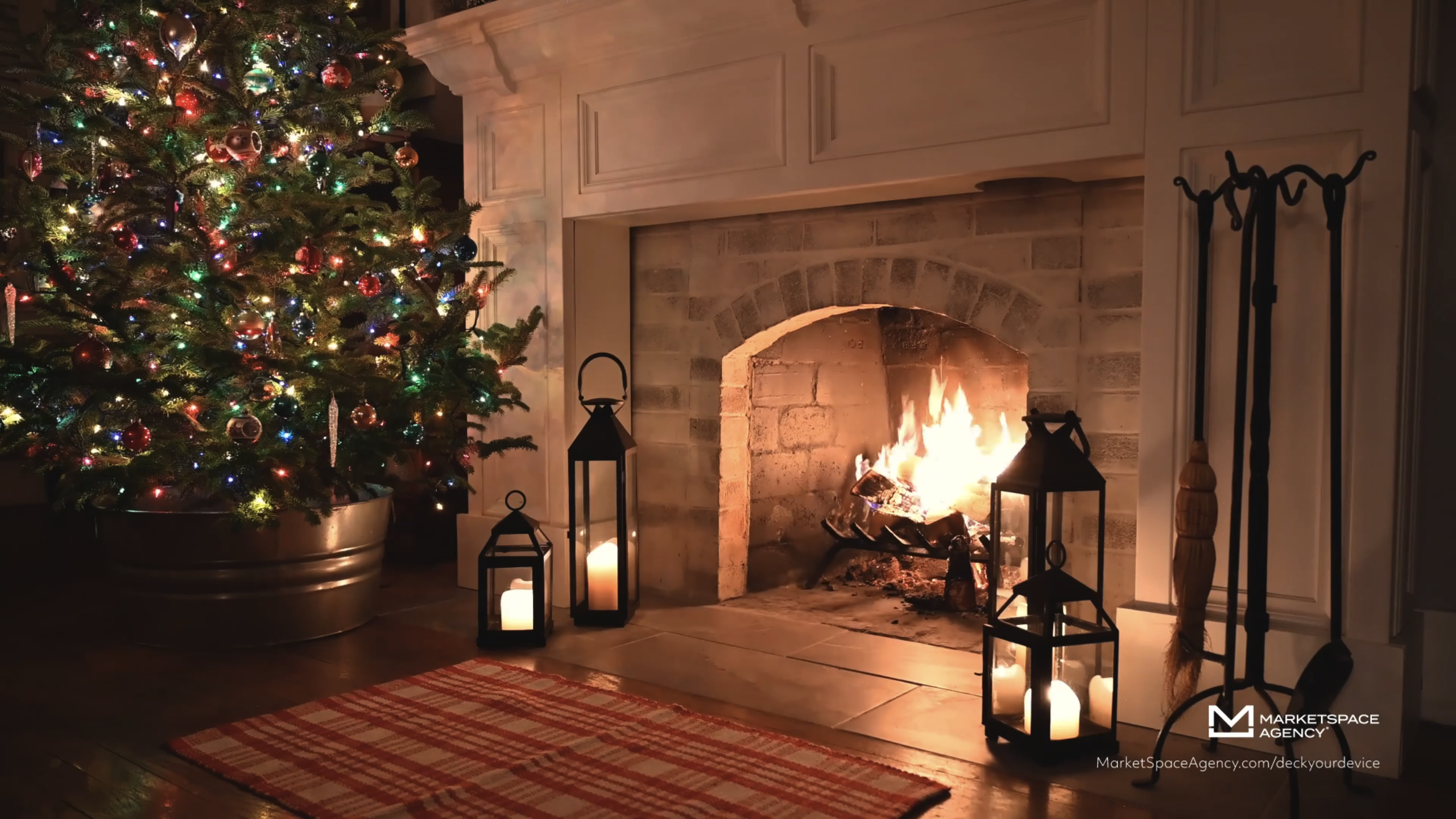
Desktop Videos:
Good for Zoom!


Instructions to Deck Your Device – Desktop Edition
Pick your favorite background, and save it to your desktop. Then follow these instructions for Teams and Zoom!
Teams:
- After entering the meeting, click “more” in the top navigation with the three dots above it
- Select “apply background effects”
- Select “+ add new” from the side bar menu
- Choose the background image or video from your desktop
- This will close out the side bar menu
- Again, click “more” in the top navigation with the three dots above it
- Select “apply background effects”
- Scroll to the very bottom of the pre-populated images and select the one you just uploaded
- Click “apply” at the bottom
- Watch your background transform into seasonal splendor. Enjoy!
Zoom:
- After entering the meeting, click the up arrow next to the video icon
- Select: choose virtual background
- In the left hand column, make sure “background & effects” is selected
- Click the “+” under the video and choose “add image”
- Choose the background image or video from your desktop
- It will immediately replace the background behind your video
- Smile – you’re going to be the merriest in the meeting!